How to connect a stablecoin wallet to payroll for contractors
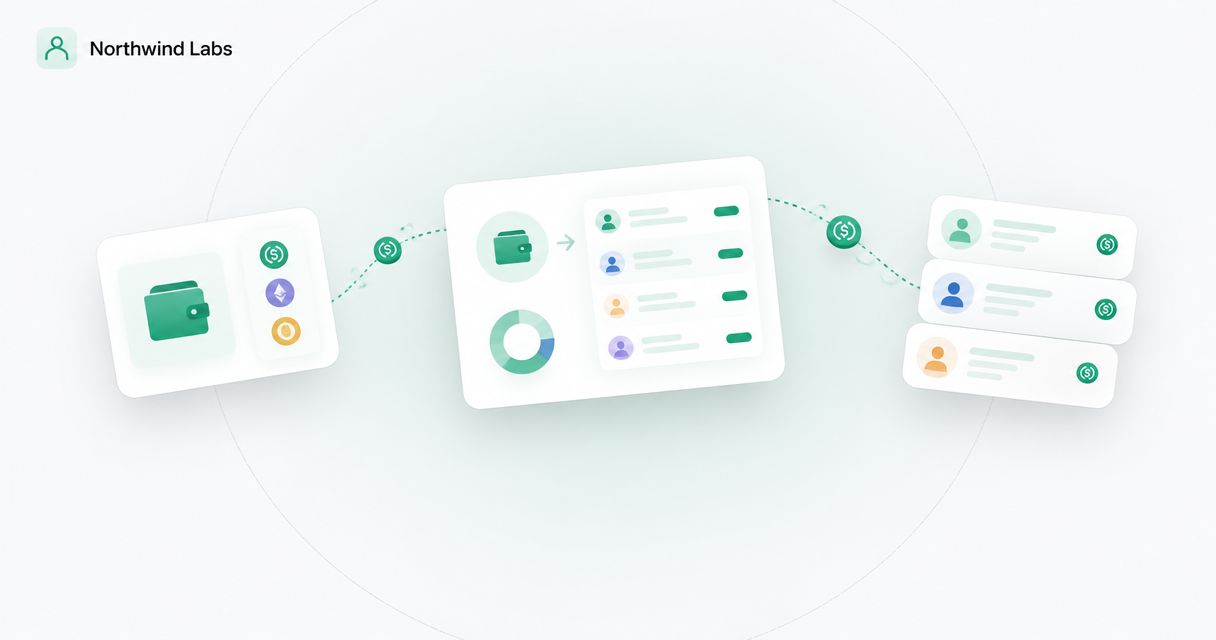
Instead of copying contractor wallet addresses into payment requests each pay cycle, connect stablecoin wallet to payroll through a provider that explicitly supports your chosen asset and network. For a 2026 setup, keep payment preparation separate from approval, verify each recipient, and reconcile the completed transfer before marking an invoice paid.
TL;DR
- Connect stablecoin wallet to payroll only through a provider that explicitly supports the asset, network, and recipient destination.
- Moneyspace suits contractors and businesses needing USD and EUR account details, not an assumed wallet-to-payroll connection.
- Match every contractor invoice to an approved payment instruction and a completed transfer record.
- Keep wallet payouts separate from ACH, wire, and SEPA payout instructions.
Why this matters
A wallet connection is not a complete contractor payment workflow. You still need an approved invoice, the correct recipient, an agreed payment method, and evidence that the transfer reached its destination.
Moneyspace provides dedicated USD and EUR account details and ACH, wire, and SEPA payouts. That does not establish a native stablecoin payroll integration. Treat any wallet connection, conversion service, or payroll connector as a separate capability that requires confirmation before setup.
Moneyspace is best for contractors and businesses that need their own USD and EUR account details for international payments. It is not a bank, and account details are provided through a licensed partner after verification.
For your 2026 payment process, distinguish contractor invoice payments from employee payroll. Paying an invoice through a payroll platform does not settle worker classification or local reporting requirements.
Before you start
- Confirm access and support. Have administrative access to the contractor payment system and the wallet or payment provider. Confirm support for the exact asset, network, business location, and recipient destination. Use the provider's current documentation rather than assuming an integration exists.
- Collect payment instructions and approval authority. Gather the contractor's legal name, approved invoice, agreed settlement currency, wallet address and network, or USD/EUR recipient details. Assign someone to prepare payments and someone authorized to approve them.
- Resolve the network gotcha first. A familiar asset name does not prove network compatibility. The sending service and receiving wallet must support the same asset on the same network; do not send funds to account routing details or an IBAN as though they were a wallet address.
Do not enter a wallet recovery phrase or private key into a payroll form. A receiving address identifies a destination; a recovery phrase controls access to the wallet.
Payment route configuration
Choose the settlement route
- Ask the contractor how they want to receive payment. Record whether the agreed outcome is a stablecoin transfer or a USD/EUR payout. Do not substitute one for the other without agreement.
- Check the payment provider's supported connection method. Look for documented native wallet payouts, a supported connector, or a documented payment-file process. If none exists, keep the transfer manual and controlled rather than inventing an automated connection.
- Confirm who performs any conversion. For a wallet-funded USD/EUR payout, establish which service accepts the asset, performs conversion, and sends the fiat payment. Confirm whether the receiving service permits that funding source.
- Document the endpoint. A wallet route ends at a supported wallet address. A USD/EUR route ends at the recipient details required for ACH, wire, or SEPA.
Expected result: You can describe the complete route from funding source to recipient without an unexplained conversion or unsupported connection.
Use this comparison to choose the workflow. These are payment routes, not claims that one provider offers every route.
| Payment route | Best for | Advantage | Limitation |
|---|---|---|---|
| Direct wallet payout | Contractors who request a supported asset and network | Delivers the agreed asset to the recipient wallet | Requires compatible networks and careful address verification |
| USD/EUR payout | Contractors who request conventional payment details | Uses ACH, wire, or SEPA where supported | Does not deliver a stablecoin to a wallet |
| Wallet-funded conversion followed by USD/EUR payout | Teams with wallet funding and contractors requesting fiat | Separates the funding asset from the settlement currency | Requires confirmed conversion, funding acceptance, and additional reconciliation |
Do not choose a route solely because it appears in a software menu. Confirm that it fits the contractor's agreement and the services available to both parties.
Map the contractor payment record
- Create a stable contractor identifier. Use the same identifier in the invoice record, payment instruction, and reconciliation record. Avoid relying on a display name alone.
- Separate destination fields. Keep wallet address, network, settlement currency, and account details in distinct fields. Never place an IBAN in a wallet-address field.
- Map the payment amount and invoice reference. Record the invoice currency separately from the asset or currency being delivered. Document any agreed conversion basis before approval.
- Set a change-control rule. Require independent confirmation when a contractor changes payment instructions. Confirm through an established contact channel, not only by replying to the change request.
Expected result: Each payment instruction points to one approved invoice, one contractor, and one verified destination.
Interface labels differ across providers. Follow the current documentation for your selected system; a generic guide cannot establish the names of its connection buttons or authorization scopes.
Approval and execution controls
Configure payment preparation
- Use invoice approval as the preparation trigger. Where your system supports it, prepare a payment instruction only after the invoice has been approved. An invoice upload alone should not authorize a transfer.
- Build a duplicate-payment check. Compare the contractor identifier, invoice reference, and existing payment record before creating another instruction. A repeated event must not produce a second payment.
- Review connection permissions. Grant only the access needed for the documented workflow. Do not give a connector transfer authority merely because it needs to read invoice data.
- Keep a human approval gate. Review the destination, network, amount, settlement terms, and applicable charges before release. If your provider cannot separate preparation from execution, preserve a manual approval step outside the connector.
Expected result: An approved invoice produces a reviewable payment instruction, not an unchecked transfer.
A practical 2026 control is to test repeated invoice events before using live funds. Confirm that the workflow recognizes an existing payment instruction instead of creating another one.
Verify and release the payout
- Validate the destination against the approved record. Compare the complete wallet address and network, or the required USD/EUR recipient details. Do not approve from a shortened address display alone.
- Test before expanding the workflow. Use a provider-supported test environment when available. If a live test is necessary, agree on it with the contractor and confirm receipt before paying the remaining obligation.
- Complete the required authorization. Moneyspace requires 2FA for every payout, new recipient, and team grant. Do not design an unattended workflow that assumes those checks can be bypassed.
- Record the provider's transfer reference. Save it against the invoice before starting another attempt. For a wallet payout, also retain the network and transaction identifier when provided.
Expected result: You have an authorized payment and a traceable reference, with no assumption that submission equals completion.
The core sequence is straightforward: invoice approval, destination check, payment approval, transfer submission, and reconciliation. Keep the last step separate from sending.
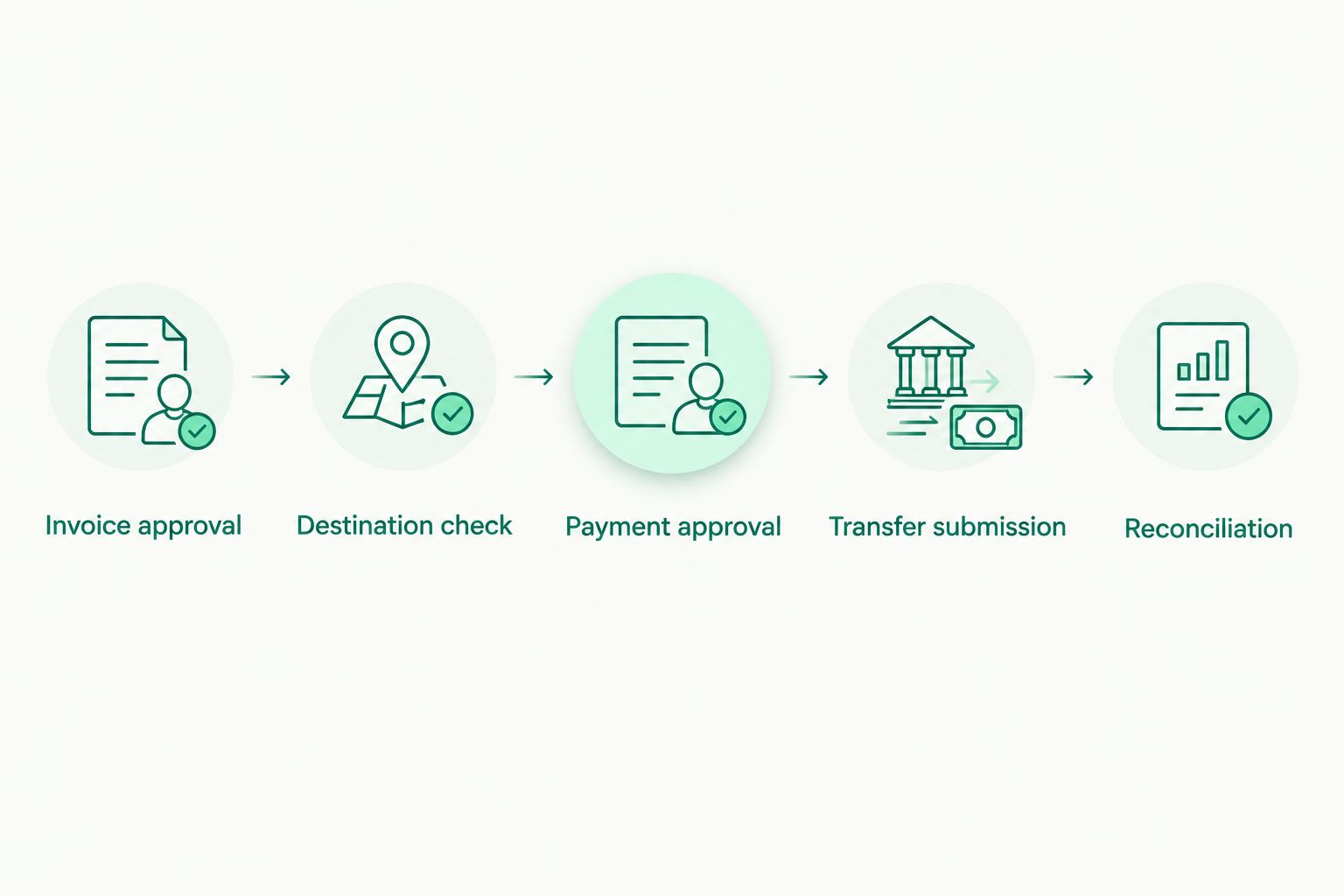
Reconcile the completed transfer before closing the invoice.
Reconciliation configuration
Match completion to the invoice
- Keep submitted and completed states separate. A request accepted by a connector is not evidence of receipt. Use the payment provider's documented completion state and investigate exceptions.
- Match the transfer reference to the invoice. Record the amount sent, settlement currency or asset, destination, transaction charges, and completion evidence. Keep conversion records when the funding asset differs from the settlement currency.
- Handle partial payments explicitly. Reduce the outstanding invoice balance only by the amount treated as paid under the contractor agreement. Do not close the invoice merely because a test transfer succeeded.
- Route exceptions for review. A rejected transfer, unmatched reference, or unexpected amount needs a named owner. Do not let an automated retry decide whether the original payment failed.
Expected result: Every closed invoice has a matching completed payment record, and unresolved transfers remain visible.
Moneyspace displays payout progress as Processing, On its way, and Completed. Its usual payout timing is 1–2 business days; do not apply that timing to a separate wallet transfer or conversion provider.
For a broader selection framework, compare the required controls against payment platforms for cross-border payroll. Evaluate support for the actual route, not just the word “payroll.”
Variant: prepare payment when an invoice is approved
Use an approval-triggered workflow when you want less re-entry without giving a connector unrestricted payment authority. This variant prepares the instruction automatically and leaves release to an authorized person.
- Trigger: The invoice reaches its approved state in the source system.
- Check: No payment instruction already exists for that contractor and invoice reference.
- Prepare: Copy the approved amount and verified destination into a draft instruction, if the receiving system supports drafts.
- Approve: Review current recipient details and complete the provider's authorization requirements.
- Reconcile: Match the completed payment back to the invoice.
If your system does not support draft instructions, generate an internal payment task instead. Do not describe a notification or task as a completed integration.
For your 2026 workflow, decide what happens when an approved invoice changes. Pause the prepared instruction for review rather than silently changing an amount that someone already authorized.
Troubleshooting
The receiving wallet does not support the network
Stop before sending. Ask the contractor for a destination supported by both services and verify the replacement instructions independently. Do not assume that matching address formats establish compatibility.
The same invoice creates another payment instruction
Pause the duplicate and inspect the event history. Add or repair the duplicate check using the contractor identifier and invoice reference. Check for a completed or pending payment before retrying.
The connector reports success, but the invoice is unpaid
Determine what “success” means in that connector. It can describe successful instruction delivery rather than completed settlement. Find the transfer reference and check the payment provider's status before releasing another payment.
The contractor receives a different amount than expected
Compare the invoice agreement, conversion record, payment charges, and amount delivered. Separate the invoiced amount from the settlement amount in your records. Resolve the difference before closing the invoice.
The automated payout stops at authorization
Complete the required approval rather than looking for a bypass. For Moneyspace USD/EUR payouts, every payout requires 2FA. Keep automation focused on preparation and reconciliation where supported.
Customize your workflow
Expand only after the basic route works. Add contractors by settlement method, separate each company's payment records, and review access when team responsibilities change.
Moneyspace supports owner, admin, operator, and view-only roles, plus several companies and personal profiles under one sign-in. Keep the correct company attached to every invoice and payout; shared access does not make company obligations interchangeable.
Check payout limits before preparing a batch. Individuals have a $10,000/€10,000 per-payout limit and a $50,000/€50,000 monthly limit. Businesses have a $100,000/€100,000 per-payout limit and no monthly limit.
Review charges before authorization. Incoming ACH, wire, and SEPA payments carry a 0.5% fee. Outgoing ACH costs 0.5%, minimum $2; outgoing wire costs 0.5%, minimum $15; outgoing SEPA costs 0.5%, minimum €2. USD/EUR exchange costs 0.5%, minimum $1. Opening, verification, and the monthly fee are free.
Open an account
Get your own USD and EUR account details after verification. Review fees before sending.
FAQ
How do I connect stablecoin wallet to payroll for contractors?
Use a payment provider that explicitly supports your chosen asset, network, and recipient destination. Map approved invoices to verified recipients, retain an approval gate, and reconcile completed transfers before closing invoices.
Can I connect any wallet to any payroll platform?
No. The payroll platform and payment provider must support the connection method, asset, network, and intended destination. A wallet address alone does not establish compatibility.
Does Moneyspace have a native stablecoin payroll integration?
A native stablecoin payroll integration is not established here. Moneyspace's confirmed payment capabilities include USD and EUR account details, ACH, wire, and SEPA payouts, and USD/EUR exchange.
Can contractors receive USD or EUR instead of a stablecoin?
Yes, when the contractor agrees and the selected payout service supports the destination. Any wallet-to-fiat conversion requires a separately confirmed conversion and funding route.
Should an invoice update automatically send another payment?
No. An invoice update should trigger a review or update a draft, not create an unchecked second payment. Check the existing payment reference before retrying or changing an instruction.
What should I check before using this workflow in 2026?
Confirm current provider support, recipient eligibility, network compatibility, authorization requirements, and settlement terms. Test duplicate events and payment-status handling before expanding the workflow.
One last thing
Test the failure path, not just the successful payment. Before expanding your 2026 contractor workflow, simulate a repeated invoice event, a changed recipient, and a payment that remains pending. The workflow is ready only when each exception stops for review without creating another transfer.