How to connect Moneyspace to QuickBooks for reconciliation
Instead of retyping payment details and checking balances by hand, connect Moneyspace to QuickBooks through a documented reconciliation workflow: record completed activity, match existing entries, and reconcile each currency separately. This guide covers QuickBooks Online using manual entry or a compatible transaction file, without assuming a native connection or automatic feed.
TL;DR
- To connect moneyspace to quickbooks, use documented transactions; don't assume a native feed exists.
- Moneyspace suits freelancers and businesses receiving USD and EUR through ACH, wire and SEPA.
- Match existing invoices and bills before adding transactions to avoid duplicate income or expenses.
- Reconcile USD and EUR separately, using completed activity and supporting balance records.
Why this matters
A payment record and an accounting entry serve different purposes. Your payment record shows money moving; QuickBooks records what that movement means for your business. An invoice, its payment, and the resulting account activity must connect without counting the same income twice.
Moneyspace is a practical fit for freelancers and businesses collecting USD and EUR payments with account details in their own name. Its payment features don't replace bookkeeping controls. You still need supporting records, consistent dates, and the correct accounting treatment.
For your 2026 books, start with the Moneyspace activity belonging to the correct individual or company profile. Keep each company's records separate, even when you manage several profiles under one sign-in.
Before you start
- Prepare access and evidence. You need the relevant payment profile, permission to manage transactions and reconciliation in QuickBooks Online, and records showing dates, currencies, amounts, fees, and balances for the period.
- Confirm your currency setup. QuickBooks Online multicurrency availability depends on your subscription and region. Enabling multicurrency has lasting consequences, including that you can't turn it off; confirm your home currency and discuss the setup with your accountant first.
- Check the file before choosing import. Use file upload only if you already have a supported transaction file or can prepare one from complete records. Dedicated account details don't establish that a native QuickBooks connection or downloadable export is available.
Choose the entry method before you begin. Both methods need the same evidence; they differ in how transactions reach QuickBooks.
| Entry method | Best for | Advantage | Limitation |
|---|---|---|---|
| Manual transaction entry | A small set of documented transactions | Lets you inspect the accounting treatment individually | Requires repeated entry and careful duplicate checks |
| Supported file upload | A larger set of consistently formatted records | Brings transaction lines into the review workflow together | Requires correct formatting, currency assignment, and duplicate checks |
Use one entry method for each transaction, not both. Uploading a line after manually recording its accounting entry requires matching, not adding another entry.
Account and currency setup
Establish the correct accounting destination
- In QuickBooks Online, open Settings, then Chart of accounts. Review existing accounts before creating anything new.
- Identify the account that represents your USD activity. If you also hold EUR, identify a separate EUR account with the correct currency configuration.
- If an account is missing, select New. Choose its accounting classification with your accountant, enter a descriptive Name, and select the correct currency where your subscription supports it.
- Establish the opening balance from a dated, supporting record. Don't use today's balance as the opening figure for an earlier period.
- Confirm that the account belongs to the same legal entity as the payment profile. Don't mix personal activity with company activity merely because both appear under one sign-in.
Expected result: Each currency has an identifiable accounting destination, and each opening balance has dated evidence.
Use descriptive account names rather than ambiguous labels such as Payments. A name that identifies the provider and currency makes selection easier during upload, transaction entry, and reconciliation.
Before processing 2026 activity, check whether earlier transactions already exist in QuickBooks. A clean starting date prevents overlapping imports and unexplained opening-balance differences. If earlier books are closed, ask your accountant how to handle corrections rather than changing historical entries yourself.
Prepare the supporting records
Collect the transaction date, currency, amount, recipient or payer, payment reference, fee, and completion evidence. Keep invoices and bills alongside the payment records so you can distinguish customer receipts, supplier payments, and transfers between your own accounts.
Record the account activity as it actually occurred. Don't assume a displayed payment amount is the same as the balance movement when a fee is involved. Use the underlying records to establish whether the fee appears separately or within the settlement.
For currency exchanges, retain evidence of both currency movements. The USD side and EUR side must be traceable to the same exchange, while preserving the amounts recorded in each currency.
Transaction entry and matching
Bring documented activity into QuickBooks
- Select a completed period and gather its supporting records. Keep pending payments in a separate tracking list until their accounting treatment is established.
- For manual entry, create the appropriate transaction in QuickBooks: an invoice payment, bill payment, expense, or transfer. Use the form that reflects the underlying event rather than treating every receipt as sales income.
- For file upload, open Transactions, then Bank transactions. Use Upload from file when that option appears in your QuickBooks Online interface; navigation and wording can vary by region and interface version.
- Select your supported file and the correct destination account. For CSV uploads, map the date, description, and amount columns to the corresponding fields shown in the import process.
- Review the date format and money-in/money-out direction before completing the upload. Confirm that a receipt increases the account balance and a payout decreases it.
Expected result: Transactions are either recorded through the correct accounting forms or waiting for review in the intended currency account.
Don't manufacture a transaction file from incomplete screenshots. If records lack the details needed to identify an amount or direction, resolve the gap before importing. A file that uploads successfully can still contain incorrect accounting data.
Match before adding new entries
- Review each imported line against existing invoices, received payments, bills, expenses, and transfers.
- Use Match when QuickBooks identifies the correct existing entry. Inspect the date, amount, counterparty, and reference rather than accepting a suggestion solely because the amount agrees.
- Use Add only when the line represents activity that hasn't already been recorded. Select the appropriate category and counterparty.
- Record transaction fees according to the supporting evidence. Don't post the full invoice amount as received cash when the actual balance movement differs.
- Treat movements between your own accounts as transfers where appropriate. An internal transfer isn't new customer revenue or a supplier expense.
Expected result: Each real payment has one accounting treatment, with no duplicate income, expenses, or transfers.
Match first; add only when the accounting event is genuinely new. This rule matters especially when invoices or bills were entered before the payment arrived.
A payment can settle an existing receivable without creating new revenue. Likewise, paying a previously recorded bill settles a payable rather than creating another expense. Ask your accountant to review unfamiliar cases before applying bulk categorization rules.
Period-end reconciliation
Compare the ledger with the supporting balance
- Choose a period with reliable opening and closing records. Use the same cutoff date for the QuickBooks account and the external balance evidence.
- Open Settings, then Reconcile, and choose the correct account.
- Check Beginning balance against the previously reconciled closing balance. Investigate a mismatch before reviewing the current period.
- Enter Ending balance and Ending date from your supporting period-end record, then select Start reconciling.
- Select the transactions supported by the period's completed activity. Investigate every unexplained difference instead of inserting an adjustment merely to finish.
- Select Finish now only when the reconciliation agrees. Retain the reconciliation report with the records used to support it.
Expected result: The account balance agrees with the supporting record, and differences have an explanation rather than a balancing entry.
For the 2026 reconciliation file, preserve the source records, imported file if used, and final report together. This creates a traceable path from each payment to the accounting entry and period-end balance.
A matching total alone isn't enough. Confirm that the selected transactions also belong to the correct currency, company, and reporting period.
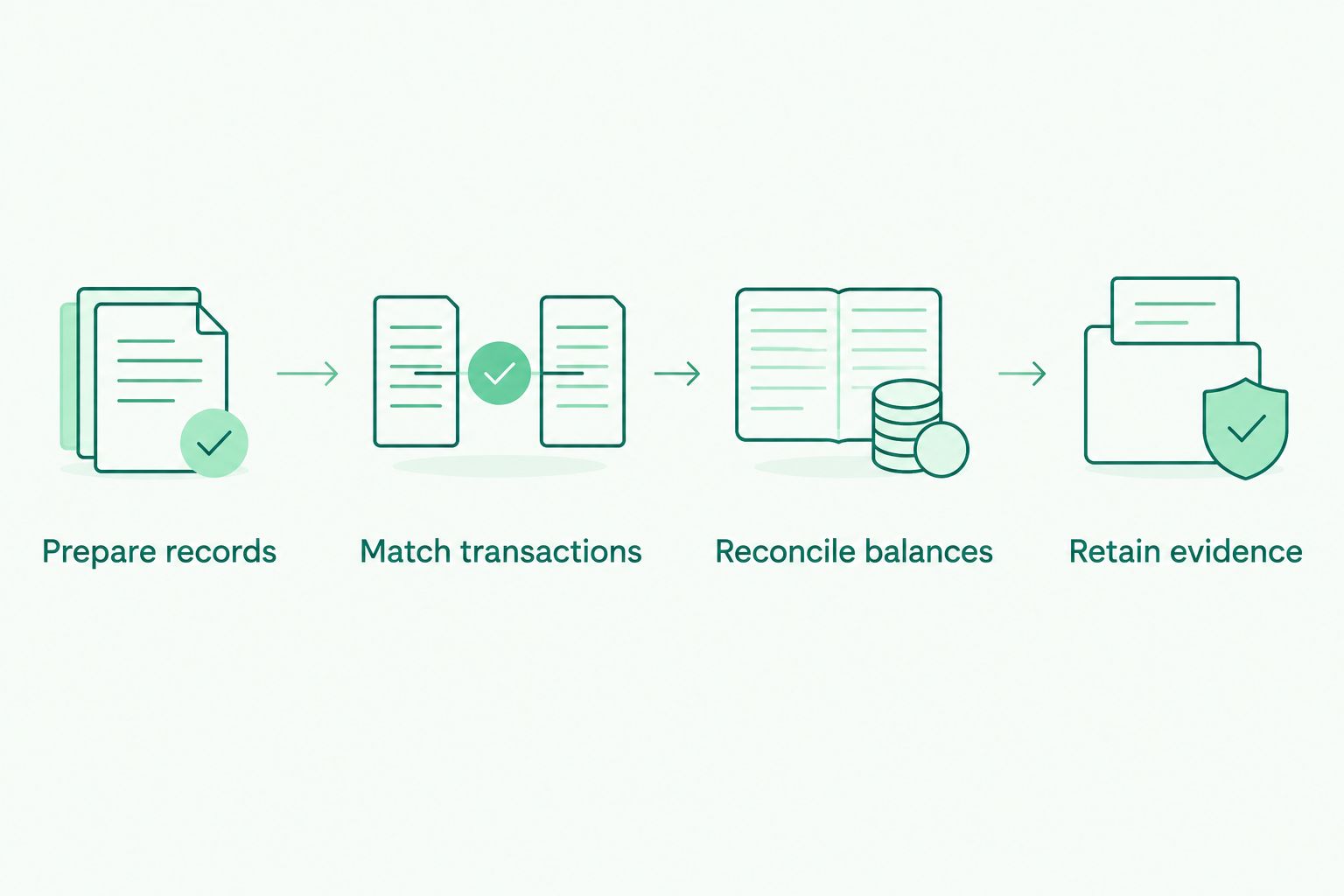
Check the underlying transactions before closing the reconciliation.
Repeat the workflow when payments complete
You can use the same process for ongoing bookkeeping instead of waiting until period-end. This is a repeatable review process, not a claim of an automated integration.
Moneyspace displays payout status as Processing, On its way, and Completed. Review status alongside the actual account activity; don't assume that initiating a payment proves the recipient has received it or establishes its final accounting date.
For your 2026 operating routine:
- Review recently completed activity and collect the supporting details.
- Record or import only transactions not already processed.
- Match receipts and payouts to existing accounting entries.
- Keep unresolved items on an exception list for investigation.
Allow for normal payment timing when following up. Incoming ACH usually takes 1–3 business days; incoming wire and SEPA usually arrive within a business day. Payouts usually take 1–2 business days. These are usual timings, not promised completion dates.
Regular matching reduces the unresolved items left at period-end. It doesn't replace reconciliation against a supported closing balance.
Troubleshooting
The connection search doesn't establish a usable feed
Don't enter credentials into an unrelated listing or assume a similarly named institution is correct. Confirm any connection through official product guidance. Continue with documented manual entry or a supported file rather than treating a feed as a prerequisite.
The upload reverses receipts and payouts
Check whether the file uses a single signed amount column or separate money-in and money-out columns. Correct the mapping and verify the direction against known transactions before proceeding. Don't compensate by recategorizing reversed amounts.
Income or expenses appear twice
Look for an imported line added after its invoice payment, bill payment, or expense was already recorded. Keep the valid accounting entry and resolve the duplicate through the appropriate review or correction process. Check reconciled periods with your accountant before deleting anything.
The reconciliation difference equals a fee or currency movement
Compare the actual balance movement with the payment record and fee evidence. For exchanges, inspect both currency accounts and the exchange-rate treatment. Don't change a customer invoice to hide a settlement difference.
The beginning balance no longer agrees
Check whether a previously reconciled transaction was edited, deleted, or moved to another account. Review the prior reconciliation and available audit history. Resolve the historical change before forcing the current period to balance.
Customize your workflow
Start with a review routine you can repeat accurately. Then expand it to cover separate companies, supplier payments, and currency exchanges without combining their accounting records.
Moneyspace supports owner, admin, operator, and view-only roles. Assign access according to responsibility, but manage QuickBooks permissions separately. A role in the payment workspace doesn't establish equivalent permission in the accounting system.
Every payout, new recipient, and team grant requires 2FA. Keep those authorization steps separate from bookkeeping review; recording an expense isn't authorization to send money.
For agencies handling multiple clients and currencies, the guide to multi-currency accounts for consultants and agencies provides a related account-selection topic. Keep the accounting workflow focused on entity separation, evidence, and matching.
Product facts supplied by the client on October 26, 2026. Moneyspace is not a bank. Account details are provided through a licensed partner after verification.
FAQ
Can I connect Moneyspace to QuickBooks automatically?
Don't assume an automatic connection is available. Confirm native-feed support through official product guidance; this workflow uses documented manual entry or a supported transaction file.
Do I need QuickBooks Online multicurrency for USD and EUR?
You need an appropriate multicurrency setup when recording foreign-currency accounts in QuickBooks Online. Availability depends on your subscription and region, and enabling multicurrency can't be reversed.
Can I upload a CSV file instead of using a live feed?
QuickBooks Online supports CSV transaction uploads through its file-import workflow. You still need a correctly formatted file with reliable transaction details; this guide doesn't assume the payment service supplies an export.
Should I add an imported payment if the invoice already exists?
Check for an existing payment entry before adding the imported line. Match the activity to the correct accounting record so the receipt doesn't create duplicate income.
How do I record payment fees during reconciliation?
Record fees using the actual supporting transaction evidence. Reconcile the cash movement and fee treatment without assuming the invoice amount equals the amount received.
Should I reconcile Processing payouts as completed payments?
Don't treat a Processing status as proof of completed payment. Use the actual account activity and supporting records to determine the correct entry and period.
Can I combine several companies in one QuickBooks account?
Keep each company's bookkeeping records separate. Shared sign-in access to payment profiles doesn't make those companies a single accounting entity.
One last thing
A reconciliation can balance while the bookkeeping is still wrong. Duplicate entries can offset each other, and a correctly totaled transfer can still sit in the wrong category. Before closing each 2026 period, inspect the largest and least familiar transactions as well as the final difference.