How to connect Moneyspace to Xero for multi-currency books

Instead of re-entering every USD and EUR payment, connect Moneyspace to Xero through a controlled statement-import workflow: keep each currency separate, import transaction records, then reconcile receipts, payouts and exchanges. This guide covers manual imports, not a native connection or automatic sync.
TL;DR
- To connect Moneyspace to Xero, use separate USD and EUR ledgers and a controlled statement-import workflow.
- Xero needs multicurrency support when a transaction account uses a currency different from your organization’s base currency.
- Import transaction records, then reconcile invoices, fees and currency transfers without counting income twice.
- A statement import is not a live feed; maintain a clear cutoff for every imported period.
Why this matters
Moneyspace provides dedicated USD and EUR account details in your own name. Xero records the accounting treatment of the payments that pass through those accounts. Keeping those jobs separate prevents an imported receipt from becoming a second sale when an invoice already exists.
Moneyspace is best for freelancers and businesses that need their own USD and EUR account details for international payments. The accounting trade-off in this workflow is manual preparation and reconciliation rather than an automatic feed.
For your 2026 books, the objective is straightforward: each currency ledger should agree with its underlying transaction records. Invoice balances, payment fees and transfers must also remain explainable.
Before you start
- Get the right access. You need access to the relevant payment records and permission to add accounts, import statements and reconcile transactions in Xero. Use a Xero subscription that supports multicurrency if USD or EUR differs from your organization’s base currency.
- Prepare the records. Gather dated receipts, payouts, exchange records, fees, opening balances and invoice references. Use downloadable records if available; otherwise prepare a CSV from the underlying transaction history. Don’t assume a particular export format exists.
- Check the currency before importing. Xero account currency is a setup decision, not something to repair by changing imported amounts. Check existing ledgers first so you don’t create a duplicate account or import USD records into a EUR ledger.
Choose a cutoff before touching the import screen. Record the last transaction already included in Xero, then identify the next transaction to import. A date alone is insufficient when several payments share that date.
For a 2026 migration, retain the closing records from your previous bookkeeping process. Set the opening position with your accountant before importing later activity; otherwise, an opening balance and imported historical receipts can count the same money twice.
Currency ledger setup
Separate USD and EUR records
- Open Accounting, then Bank accounts in Xero. This is Xero’s accounting menu label; it doesn’t describe the legal status of your payment provider.
- Review existing accounts for a ledger that already represents the relevant currency balance. Reuse the correct ledger instead of creating another copy.
- If you need a new ledger, select Add Bank Account. For a manual setup, use Add it anyway when Xero offers that option rather than selecting an unrelated provider.
- Give the ledger a clear Account name, such as USD receipts or EUR receipts. Choose the correct Currency and use your accountant’s preferred account code.
- Confirm the opening balance and conversion date before importing transactions. Don’t enter a current balance as an opening balance and then import the activity that produced it.
Expected result: You have a distinct ledger for each currency you actually hold, with an agreed opening position and no duplicate accounts.
Use the following distinction throughout your setup:
| Ledger | Best for | Benefit | Constraint |
|---|---|---|---|
| USD ledger | USD receipts, payouts and exchange movements | Keeps original USD amounts traceable | It cannot also represent your EUR balance |
| EUR ledger | EUR receipts, payouts and exchange movements | Keeps original EUR amounts traceable | It needs separate imports and reconciliation |
Your organization’s base currency serves a different purpose. Xero uses it for financial reporting; it doesn’t mean every imported transaction should be converted into that currency before upload.
Keep source amounts in the ledger’s currency. Converting every EUR receipt to USD in a spreadsheet removes the original EUR movement you need to reconcile.
Transaction file preparation
- Separate the source records into USD and EUR files. Keep different companies separate as well, even when you manage them under one sign-in.
- Prepare a CSV containing at least a transaction date and amount. Add payee, description and reference information where the source records provide it.
- Use positive amounts for money received and negative amounts for money paid out. Preserve the actual transaction amounts rather than invoice totals that differ from the recorded movement.
- Use a consistent date format. Check an unambiguous date in the import preview so day and month don’t get reversed.
- Preserve transaction references in the file and save an untouched copy of the source records. Those references help you investigate repeated amounts and partial payments.
Expected result: Each file contains one currency, one company and a defined reporting period, with enough detail to identify the underlying payments.
Don’t manufacture separate fee lines when the source records show only a net movement. Likewise, don’t combine a separately recorded fee with a payout and then import both versions. The CSV must represent the actual balance movements.
Statement import and reconciliation
Import preview
- Open the correct currency account under Bank accounts in Xero.
- Choose Manage Account, then Import a Statement. Select the prepared file and follow the import prompts.
- Map the date and amount columns. Map payee, description and reference columns where available.
- Inspect the preview before completing the import. Compare the first and last dates, payment signs and currency against the source records.
- Complete the import only after the preview agrees with the file. Record the imported period and its closing transaction reference in your import log.
Expected result: The statement lines appear in the intended currency ledger, ready for reconciliation. Importing alone does not establish that each line has the correct accounting treatment.
For your first 2026 import, use a small, clearly bounded period. Include a receipt and a payout if your records contain both. Validate the process before importing a larger history.
The workflow has distinct stages. Preparing a correct file doesn’t replace checking the preview, and a successful upload doesn’t replace reconciliation.
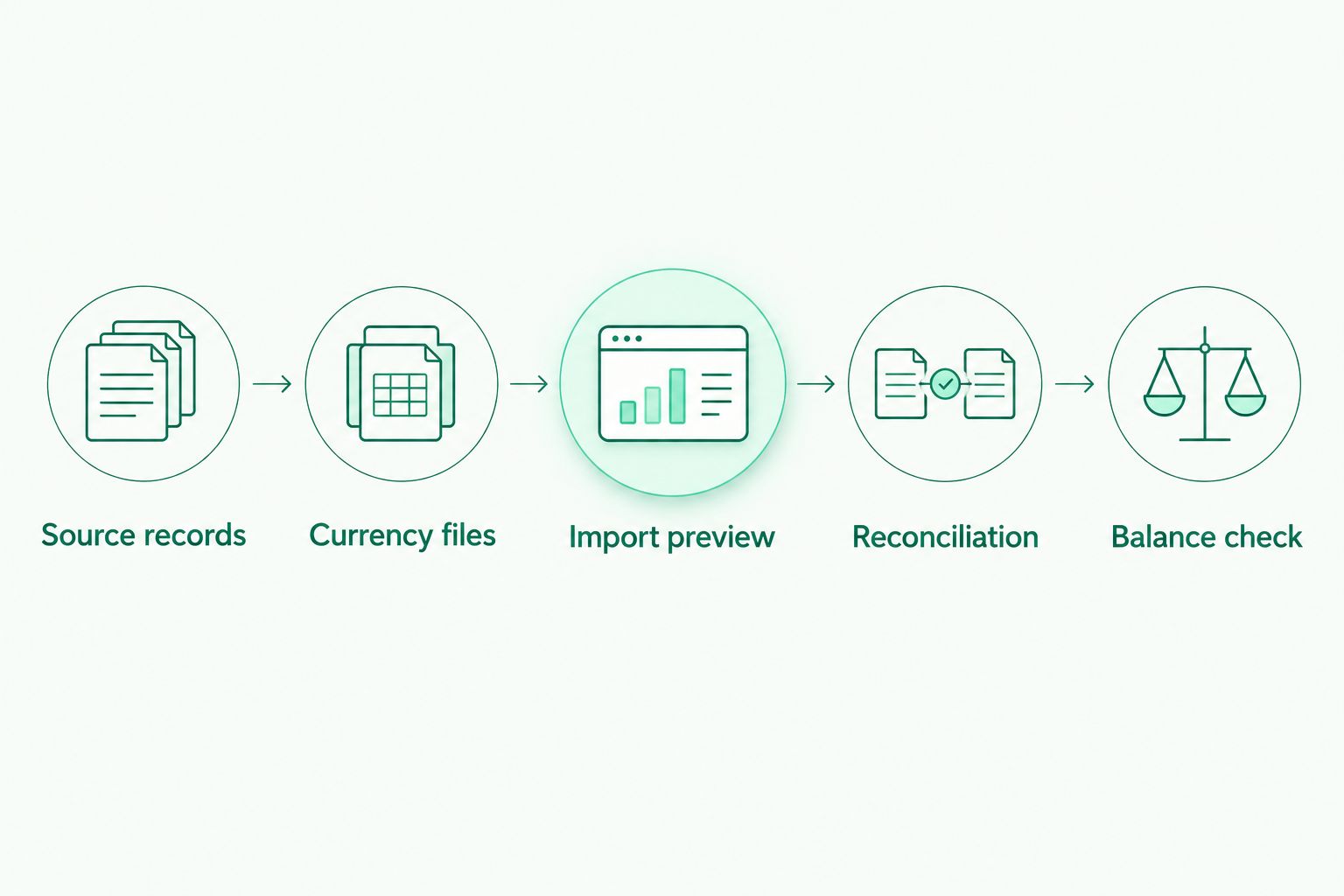
Check the imported statement lines before assigning their accounting treatment.
Reconciliation
- Open the account’s Reconcile tab. Review the source reference and payment direction before accepting a suggested match.
- For a customer receipt, use Match when the corresponding invoice already exists. Check the customer, currency and amount rather than matching on amount alone.
- For a supplier payout, match the existing bill or payment record where appropriate. Don’t create another expense for an obligation already recorded.
- Account for documented fees separately from sales and supplier costs. Where a receipt settles an invoice net of a fee, reconcile the invoice and fee together using the accounting treatment agreed with your accountant.
- Investigate unmatched differences before accepting them as adjustments. A difference can reflect a fee, partial payment, exchange movement or incorrect match.
Expected result: Each imported movement has an identifiable explanation without duplicating income or expenses.
Match existing documents before creating new transactions. The import provides evidence of money moving; an invoice or bill provides the commercial reason for that movement.
For batch receipts, retain the supporting breakdown. One incoming payment can settle several invoices, so a single statement line doesn’t necessarily correspond to a single sale.
USD-to-EUR exchange reconciliation
A currency exchange needs a different treatment from a customer receipt. Money leaves one currency balance and enters another; it isn’t new revenue.
- Locate the USD decrease and EUR increase belonging to the same exchange. Compare transaction references, dates and the exchange record.
- In Xero, use the Transfer reconciliation option to associate the movement with the other currency account rather than an income or expense category.
- Enter or confirm the actual amount received in the destination currency. Don’t substitute an estimated rate for the recorded result.
- Record any separately documented exchange fee without counting it again in a net movement.
- Reconcile the destination side against the corresponding transfer. Check that you haven’t created another independent transfer for the same exchange.
Expected result: The exchange explains movements in both ledgers without increasing sales or supplier expenses.
Your 2026 reporting currency can still produce exchange differences when foreign-currency balances or invoices are translated. Ask your accountant to distinguish those accounting differences from actual payment fees; they answer different questions.
For a broader account-selection context, see the guide to multi-currency accounts for consultants and agencies.
Ongoing imports when new payments arrive
The adjacent workflow is a recurring statement import. It uses the same ledgers and reconciliation rules without implying an automatic trigger.
- Start after the last successfully imported transaction, not simply after the last file’s creation date.
- Prepare the next currency-specific file and compare its opening position with the previous closing position.
- Import, reconcile and save the new cutoff in your log.
- Retain corrections separately so another team member can see why a previously reviewed period changed.
Expected result: New payments extend the existing record without overlapping earlier imports.
Use completed payment records for this process. Moneyspace displays payout status as Processing, On its way and Completed; don’t treat an instruction still in progress as proof that the recipient has received the payment.
Allow for usual settlement times when investigating a missing receipt. Incoming ACH takes 1–3 business days; incoming wire and SEPA usually arrive within a business day. Payouts usually take 1–2 business days. These are usual timings, not deadlines.
Troubleshooting
The same receipt appears twice
Check whether two files overlap or an existing feed already supplied the transaction. Compare source references before removing anything. If a duplicate has already been reconciled, review the accounting entry before deleting the imported line.
USD activity appears in the EUR ledger
Stop importing into that ledger. Check its currency and the file’s contents, then correct the affected import with your accountant. Changing the description doesn’t correct the underlying currency mismatch.
A receipt doesn’t match the invoice total
Compare the invoice with the gross receipt, documented fee and net movement. Check for partial payments and currency differences. Don’t reduce revenue merely to force the reconciliation to balance.
An exchange looks like revenue
Find the corresponding movement in the other currency ledger. Correct the categorization to a transfer where appropriate, then check for separately recorded fees. Review both sides so the correction doesn’t leave an unmatched duplicate.
The closing balance still differs
Compare the source and Xero balances at the same cutoff. Check the opening balance, missing rows, reversed signs and movements still in progress. A matching transaction count doesn’t prove that the amounts or dates are correct.
Customize your workflow
For a team, assign responsibility for file preparation, import approval and reconciliation. Use the available owner, admin, operator and view-only roles according to each person’s work. Don’t share credentials as a substitute for access controls.
Moneyspace requires 2FA for every payout, new recipient and team grant. Keep payment authorization separate from bookkeeping review so access to accounting records doesn’t become permission to move money.
For founders with several companies, maintain separate source folders, import logs and Xero organizations for separate legal entities. A shared sign-in doesn’t make company balances interchangeable.
Make your 2026 month-end checklist repeatable: confirm import cutoffs, reconcile both currencies, review transfers and retain supporting records. A clean cutoff is more useful than a larger import file.
Open an account
Get your own USD and EUR account details after verification.
FAQ
How do I connect Moneyspace to Xero for multi-currency bookkeeping?
Use separate USD and EUR ledgers in Xero, prepare currency-specific transaction files, import them and reconcile each movement. This guide describes a manual statement workflow, not a native feed or automatic sync.
Do I need multicurrency support in Xero?
You need multicurrency support when an account uses a currency different from your Xero organization’s base currency. Check your subscription’s current features before creating the ledgers.
Can I import USD and EUR transactions into the same Xero account?
No. Use a separate ledger for each currency balance so original amounts remain traceable. Your reporting currency does not replace the currency of the underlying account.
What should I do if my transaction records aren’t a ready-made Xero CSV?
Prepare a CSV from the source records using consistent dates and signed amounts. Preserve references and verify the column mapping in Xero’s import preview.
How do I avoid counting a customer payment twice?
Match the imported receipt to the existing invoice instead of creating another sale. Check the customer, currency, reference and any documented fee before accepting the match.
How should I record a USD-to-EUR exchange?
Record it as a transfer between the USD and EUR ledgers, using the actual source and destination amounts. Account for separately documented fees without duplicating deductions already included in the movement.
Does importing a statement update Xero automatically afterward?
No. A manual import adds the records in that file only. Import later activity using a documented cutoff and reconcile it before closing the period.
One last thing
A correct closing balance can hide incorrect bookkeeping. A duplicated receipt and an omitted receipt of the same amount cancel numerically while leaving the wrong invoices outstanding. Check references and document matches, not just totals.