Upwork earnings to multi-currency account: complete 2026 workflow
Instead of manually moving and converting each Upwork payment, set up an eligible USD withdrawal destination and a repeatable receipt-to-payout workflow. To move Upwork earnings to a multi currency account in 2026, first confirm that Upwork accepts your Moneyspace account details; having USD receiving details alone doesn't establish compatibility.
TL;DR
- Upwork earnings to multi currency account transfers require an accepted withdrawal method, matching ownership details and the correct payment rail.
- Moneyspace provides own-name USD and EUR account details; Upwork acceptance must be confirmed separately.
- Receive eligible USD payments before exchanging to EUR or paying recipients through supported methods.
- Check transaction minimums, receiving times and payout limits before setting a withdrawal schedule.
Why this matters
Your Upwork withdrawal and your onward payment are separate transactions. A successful withdrawal setup doesn't confirm that a supplier payment has arrived, and an earnings balance isn't the same as money received in your destination account.
Moneyspace is best for freelancers seeking own-name USD and EUR account details, provided their paying platform accepts those details. It supports incoming ACH, wire and SEPA payments, USD/EUR exchange, and payouts through supported rails and destinations.
The practical objective for your 2026 workflow is to keep each handoff visible: released earnings, submitted withdrawal, received funds and onward payment. Don't treat those stages as interchangeable.
Before you start
- Prepare access and verification materials. You'll need access to your Upwork payment settings and a verified receiving profile. Individuals complete an ID check; businesses complete business verification. Approval and verification deadlines aren't promised.
- Confirm ownership and payment-method compatibility. Check the beneficiary name, receiving currency and payment rail before adding details. Own-name receiving details don't override Upwork's acceptance rules or establish eligibility in every country.
- Separate USD routing details from EUR details. ACH uses USD routing and account information. SEPA uses EUR details, including an IBAN. Don't enter an IBAN into an ACH setup or assume a routing number works for every transfer type.
For this 2026 setup, use the current account details supplied after verification, not details copied from an old invoice or another company profile. Keep access to your two-factor authentication method: every payout, new recipient and team grant requires 2FA.
Receiving profile and withdrawal method
Confirm the receiving profile
- Complete verification for the individual or business that will receive the earnings. Use the profile that corresponds to the actual recipient, not simply the profile already open under your sign-in.
- Retrieve the dedicated USD account details. Record the account holder's name, routing number and account number exactly as supplied.
- Check which payment rail those details support. Where separate instructions exist for ACH and wire, use the instructions for the method you're configuring.
- Confirm acceptance with Upwork before relying on the destination. If the details or ownership structure don't fit its requirements, resolve that before withdrawing.
Expected result: You have verified USD receiving details and have established whether they're acceptable for the withdrawal method available to you. You haven't assumed that a USD account is automatically an approved Upwork destination.
Add the withdrawal destination
- Open Upwork's Settings, then Get paid.
- Select Add a method and review the methods offered for your account. Choose an ACH-based USD method only when it's offered and your receiving details meet its requirements.
- Enter the requested beneficiary and account information. Copy the identifiers directly rather than retyping from memory.
- Review the destination before saving. Check the currency, account owner and final account-number digits against the receiving details.
- Complete any verification or activation steps Upwork displays. Don't initiate a withdrawal until the method is ready to use.
Expected result: Upwork lists the destination as usable, with the correct recipient and payment method. A saved but pending destination isn't ready for the next step.
If the expected method isn't offered, stop here. A different payment method needs its own compatibility check; changing the label doesn't make unsupported details acceptable.
First withdrawal and receipt check
Submit and reconcile the withdrawal
- Confirm that the earnings you want to withdraw are available for withdrawal. Don't plan an onward payment against earnings that haven't been released.
- Review the destination and withdrawal information shown by Upwork. Keep any platform charges separate from the receiving provider's charges when comparing the total.
- Submit the withdrawal using the available payment action. Retain the confirmation and transaction reference.
- Check the receiving account for the credit. Match the currency, received amount and reference to the withdrawal record.
- Reconcile any difference against the documented charges. Investigate an unexplained difference before using the destination for recurring withdrawals.
Expected result: You can connect a specific Upwork withdrawal to a specific incoming credit. That matched receipt—not merely a submitted withdrawal—is the checkpoint for onward spending.
Incoming ACH payments usually take 1–3 business days at the receiving stage. Incoming wire and SEPA payments usually arrive within a business day. These are Moneyspace's usual receiving times, not a promise for the entire Upwork release-to-receipt process.
Use a simple sequence in your payment records: Verification, Withdrawal setup, Receipt check, Onward payment. Each stage needs its own confirmation before you depend on the next one.
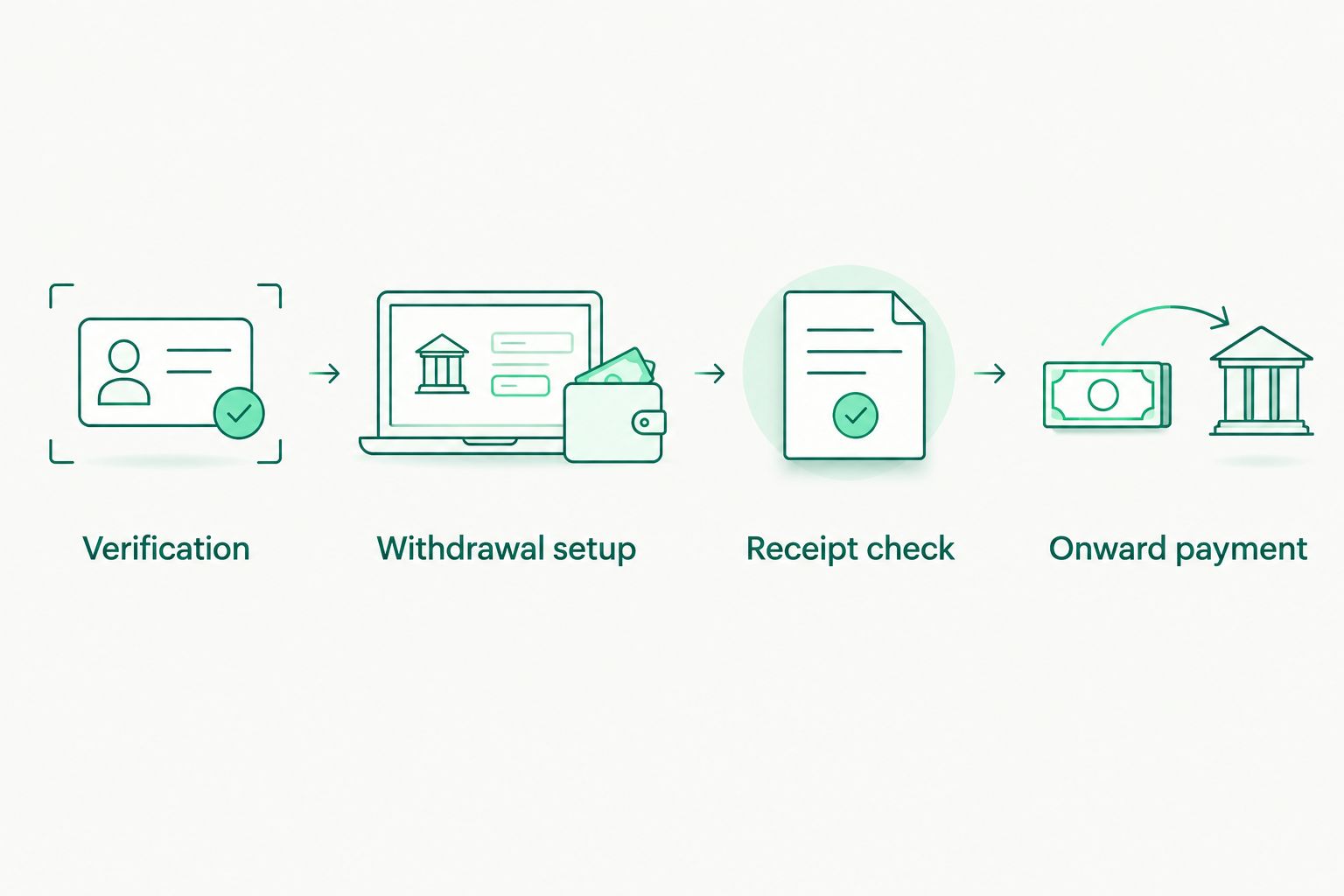
Confirm the incoming credit before planning the onward payment.
Keep the first completed withdrawal record with the receiving details you used. It gives you a reference for checking future transfers without treating every incoming payment as a new setup exercise.
Currency choice and onward payout
Once the USD credit arrives, decide what the money needs to do next. Receiving USD doesn't require an immediate EUR exchange, and exchanging currencies doesn't itself pay a recipient.
Choose the next payment step
- Match the payment currency to the actual obligation. Keep a USD payment in USD when the recipient requires USD; use EUR when the recipient requires EUR.
- If you need EUR, review the USD/EUR exchange details and the displayed fee before confirming. Record the resulting EUR amount for reconciliation.
- Add the recipient using the correct account details and supported payment rail. Complete the required 2FA for the new recipient.
- Review the payout amount, recipient, method and fee. Complete the required 2FA when confirming the payout.
- Follow the live payout status: Processing, On its way, then Completed. Check the recipient's confirmation separately if a supplier or contractor reports a discrepancy.
Expected result: You have a documented onward payment in the intended currency, with the fee reviewed before sending and a status you can follow afterward.
Compare the supported routes
The following comparison describes payment methods, not confirmed Upwork withdrawal options. Choose the Upwork method only after checking what your account supports.
| Route | Best for | Advantage | Constraint |
|---|---|---|---|
| USD ACH | Eligible USD receipts and US payments | Uses USD routing and account details | Requires compatible ACH instructions; incoming receipts usually take 1–3 business days |
| USD wire | USD payments requiring wire instructions | Provides a separate USD payment route | Outgoing wire has a higher fee minimum than outgoing ACH |
| EUR SEPA | EUR receipts and supported European payments | Uses EUR account details | Requires compatible SEPA instructions; it isn't a substitute for an ACH destination |
Choose the rail that matches the actual instructions, not the one with the most familiar name. Check the receiving destination and onward recipient independently.
Check charges and limits before confirming
Moneyspace's client-supplied product terms dated October 26, 2026 specify the following transaction charges. Review the fee shown before confirmation rather than assuming that the percentage alone determines every transaction total.
| Transaction | Stated fee | Applicable minimum |
|---|---|---|
| Incoming ACH, wire or SEPA | 0.5% | No minimum specified in the supplied terms |
| Outgoing ACH | 0.5% | $2 |
| Outgoing wire | 0.5% | $15 |
| Outgoing SEPA | 0.5% | €2 |
| USD/EUR exchange | 0.5% | $1 |
Opening, verification and the monthly fee are free. These terms don't establish what Upwork charges for a withdrawal; review that separately in its payment flow.
Individual payout limits are $10,000 or €10,000 per payout and $50,000 or €50,000 per month. Business payout limits are $100,000 or €100,000 per payout, with no monthly limit. These are payout limits, not statements about Upwork earnings or withdrawal limits.
Payouts usually take 1–2 business days. Account for that separate stage when planning a supplier deadline after an incoming withdrawal.
Variant: repeat withdrawals on a schedule
A recurring withdrawal schedule is the adjacent workflow for freelancers who don't want to initiate every transfer manually. Use it only after the destination is active and a withdrawal has arrived successfully.
- Open your Upwork payment settings and review the withdrawal scheduling options available to your account.
- Select the accepted destination and a schedule suited to your payment obligations.
- Review any balance or scheduling conditions shown before saving.
- Reconcile each scheduled withdrawal against the incoming credit, just as you did for the first withdrawal.
Expected result: Upwork initiates withdrawals according to the schedule you've configured, while you retain a separate receipt check.
For your 2026 process, keep scheduled withdrawal and onward payout as distinct decisions. A scheduled withdrawal doesn't establish automatic currency exchange, automatic supplier payments or an integration between the two services.
| Workflow | Best for | Advantage | Trade-off |
|---|---|---|---|
| Manual withdrawal | Reviewing each transfer before submission | You choose when to initiate the withdrawal | Requires a repeated action |
| Scheduled withdrawal | A recurring earnings-transfer routine | Reduces repeated withdrawal initiation | Still requires receipt reconciliation and separate onward-payment decisions |
Troubleshooting
Upwork rejects the receiving details
Compare the account holder's name and identifiers with the current receiving instructions. Check that you've selected the right payment method. If the details still aren't accepted, ask Upwork to confirm compatibility rather than repeatedly submitting altered information.
The destination is saved but unusable
Read the activation or verification notice in Upwork. Complete the requested action and wait until the method is usable. Saving the destination doesn't mean its checks are complete.
The withdrawal is submitted, but no credit appears
Check the withdrawal status and reference first. Distinguish Upwork's release and processing stages from the receiving provider's usual arrival window. If the transfer is outside the stated window, give support the reference, currency, amount and submission date.
The received amount differs from the withdrawal
Compare the original currency, withdrawal record and receiving charge. Check whether any conversion occurred along the route. Don't label the difference an exchange loss until the records establish what happened.
A supplier payout can't be confirmed
Check the available balance, recipient details, applicable payout limits and 2FA access. Review the displayed error before retrying. If you've already submitted the payment, inspect its status before creating another payout and risking a duplicate.
Customize your workflow
Build your routine around the way you work. A solo freelancer needs a clear withdrawal-to-receipt record; an agency also needs the correct company profile, recipient records and team permissions.
Use the available owner, admin, operator and view-only roles to define access. Several companies and personal profiles can sit under one sign-in, but that doesn't make their receiving details interchangeable. Confirm the active profile before copying details or sending money.
For each payment cycle, retain:
- The Upwork withdrawal confirmation and reference.
- The matching incoming-credit record.
- Any USD/EUR exchange record.
- The onward-payout record and final status.
Keep the currency visible throughout. A USD withdrawal, a EUR exchange result and a EUR supplier payment are separate entries, even when they belong to the same piece of work.
Open an account
Get dedicated USD and EUR account details after verification. Confirm platform compatibility before withdrawing.
FAQ
Can I send Upwork earnings to a multi currency account?
You can use a multi-currency receiving destination only when Upwork accepts its account details and payment method for your account. Confirm ownership, currency and rail compatibility before withdrawing.
Does Moneyspace have a confirmed Upwork integration?
This guide doesn't establish a confirmed Moneyspace–Upwork integration. Confirm acceptance of your specific receiving details with Upwork before using them as a withdrawal destination.
Should I enter USD details or a EUR IBAN for an ACH withdrawal?
Use compatible USD routing and account details for an ACH withdrawal. A EUR IBAN belongs to a different payment route and isn't interchangeable with ACH details.
How long does an ACH payment take to arrive?
Incoming ACH payments usually take 1–3 business days at the receiving stage. Upwork's earnings-release and withdrawal-processing stages are separate, so that isn't the total time from completing a job.
Can I exchange my received USD into EUR?
USD/EUR exchange is available inside the account after funds arrive. Review the exchange details and displayed fee before confirming; the stated exchange fee is 0.5%, with a $1 minimum.
Can I automate the supplier payment after an Upwork withdrawal?
This workflow doesn't establish automatic supplier payments. Treat a scheduled Upwork withdrawal, the incoming credit and an onward payout as separate stages, with 2FA required for every payout.
Can I use one receiving profile for several companies?
Use the receiving details for the company that is the actual recipient. Several company profiles can share one sign-in, but their details aren't interchangeable.
One last thing
Review the destination again whenever your receiving details or recipient profile changes. A successful withdrawal confirms that particular transfer, not every future combination of account details, ownership and payment method.
Keep a dated 2026 setup record with the accepted method and matching receipt. Moneyspace is not a bank; account details are provided through a licensed partner after verification.